Every Android smartphone has an application manager that you can get to through the settings menu. It's usually in the top-level somewhere, though it can vary a little by phone. But once you get to it, you're at the heart of the matter. This area is where you can see every application that's installed on your phone or tablet. And it's a handy place to clean things up a bit should they go wonky.
The app cache (and how to clear it)
As you use applications, they start storing files to reference later. These files are stored in an app "cache." For instance: When you're using a web browser, it'll save images you've seen so that they don't have to be downloaded every single time the app needs them. This cache saves you time and data.But maybe you want to clear an app's cached data, either to regain some used space or to try to fix a misbehaving app. This method is how you can do it.
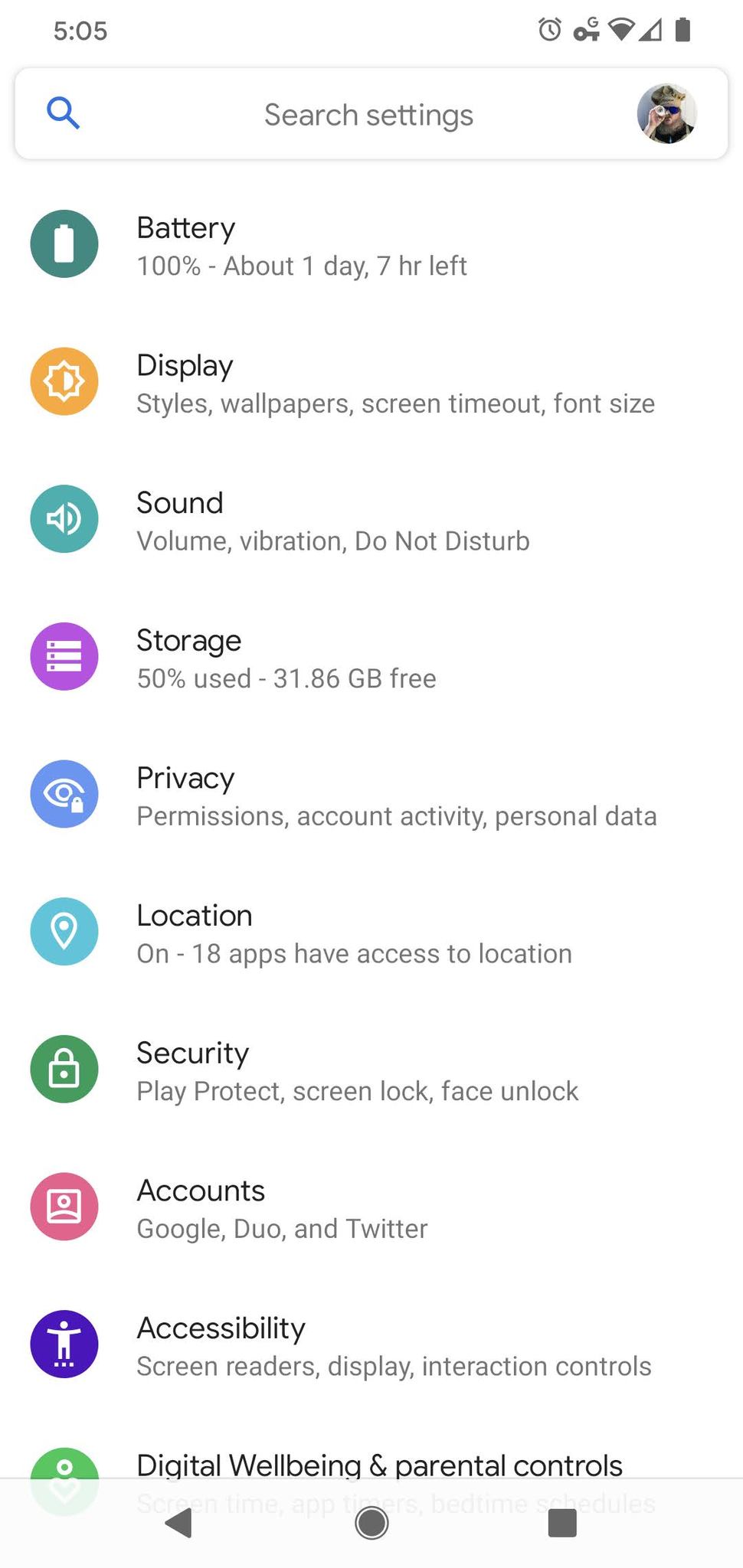
- Open the Settings of your phone.
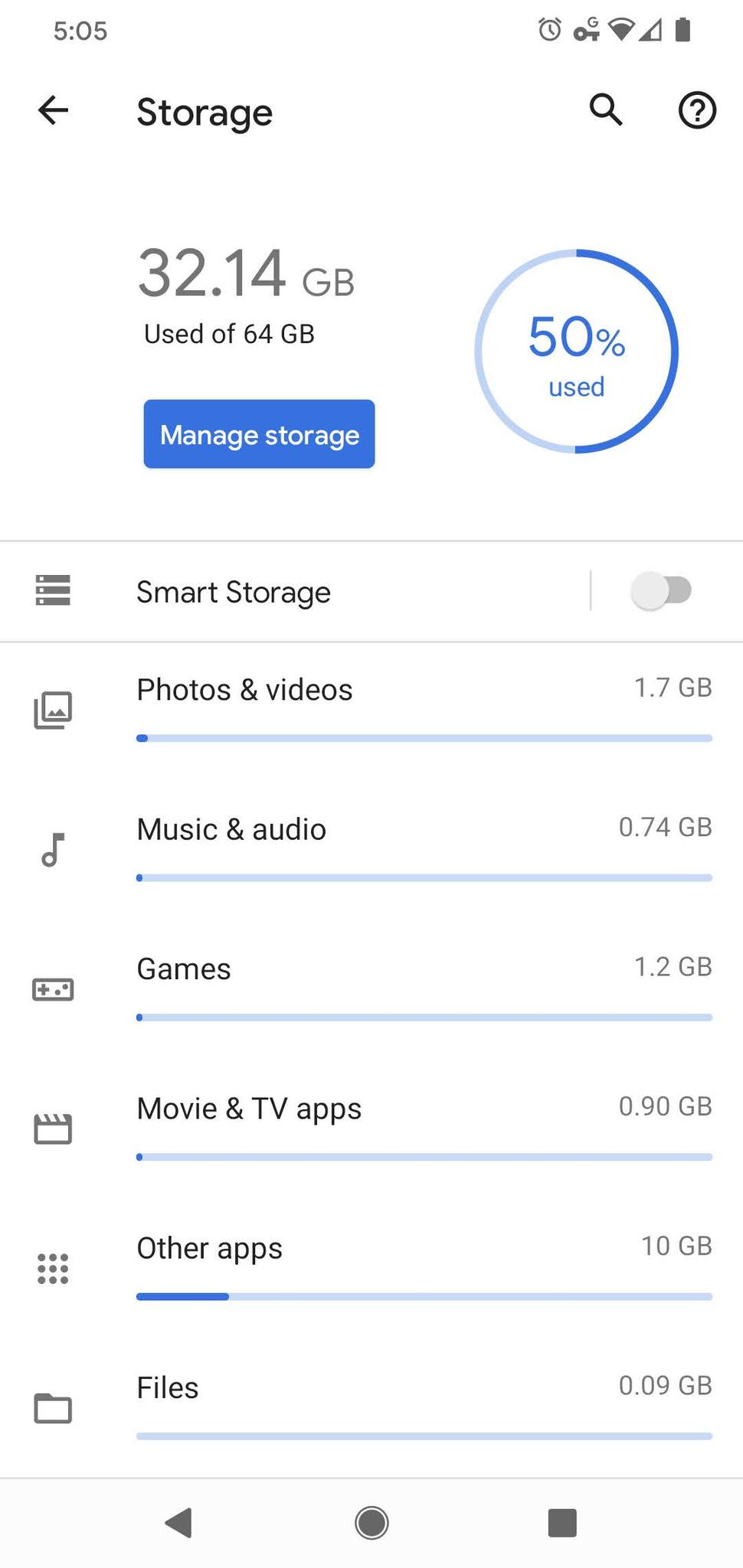
- Tap the Storage heading to open its settings page.
- If your phone runs Android Oreo or earlier, you'll want to open the App Manager settings page.

 Source: Android Central
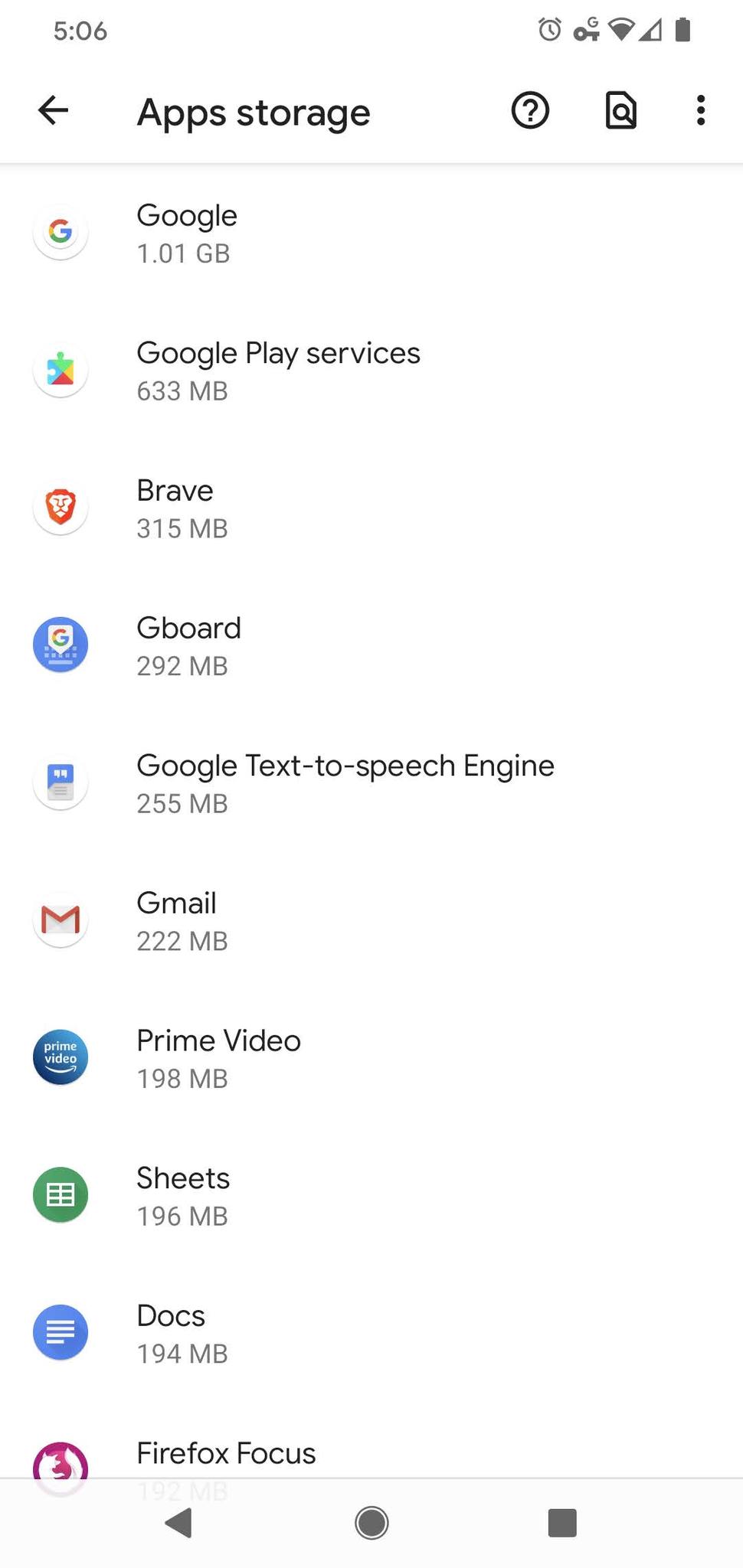
 - Tap the Other Apps heading to see a list of your installed apps.
- Find the application you want to clear the cache of and tap its listing.

 Source: Android Central
 - Tap the Clear cache button.


Your phone might look different
All Android phones cache application data the same way, but some manufacturers offer separate tools to keep apps in check. We're using the Pixel 4 in this guide, but your phone might be slightly different. Don't worry, the basics are all the same, and this guide will work for your phone, too!from Fruitty Blog https://ift.tt/3fwQqiM
via IFTTT

No comments:
Post a Comment