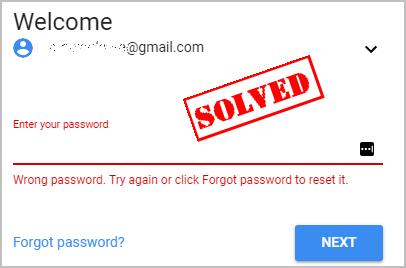
How do I reset my Gmail password?
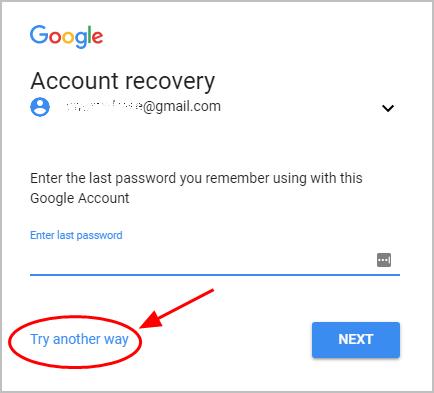
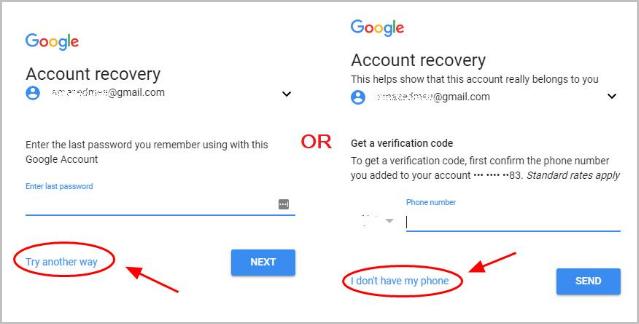
Here are the ways you can try. You don’t need to try them all; just work your way down until you find the way that works for you.- Enter the last correct password
- Get a verification code by your phone number
- Enter the time when you created your Gmail account
- Get a verification code by your recovery email
- Answer the security question
How can I never forget my Gmail password again
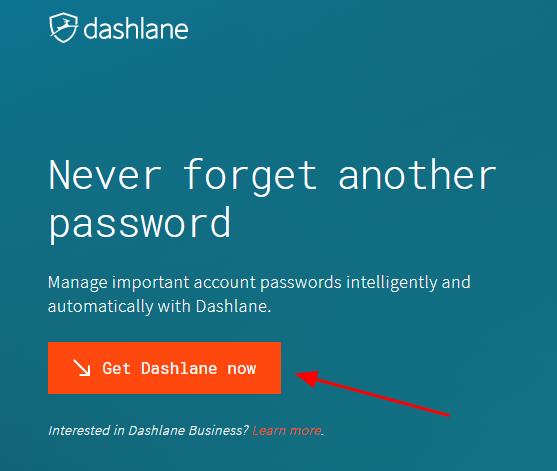
We all know that longer and more complicated the passwords are more secure. But it’s hard to remember all these long and complicated passwords composed of different strings that have no meaning to you.Guess what?! Now you can easily and automatically manage all your passwords with Dashlane.
With Dashlane, you’ll log into websites automatically and fill long web forms with a single click. You’ll only need to remember your Dashlane Master Password and Dashlane does the rest. You’ll never need to remember of type another password again. Best of all, Dashlane is completely secure and easy to use.
1) Download and install Dashlane on your device.
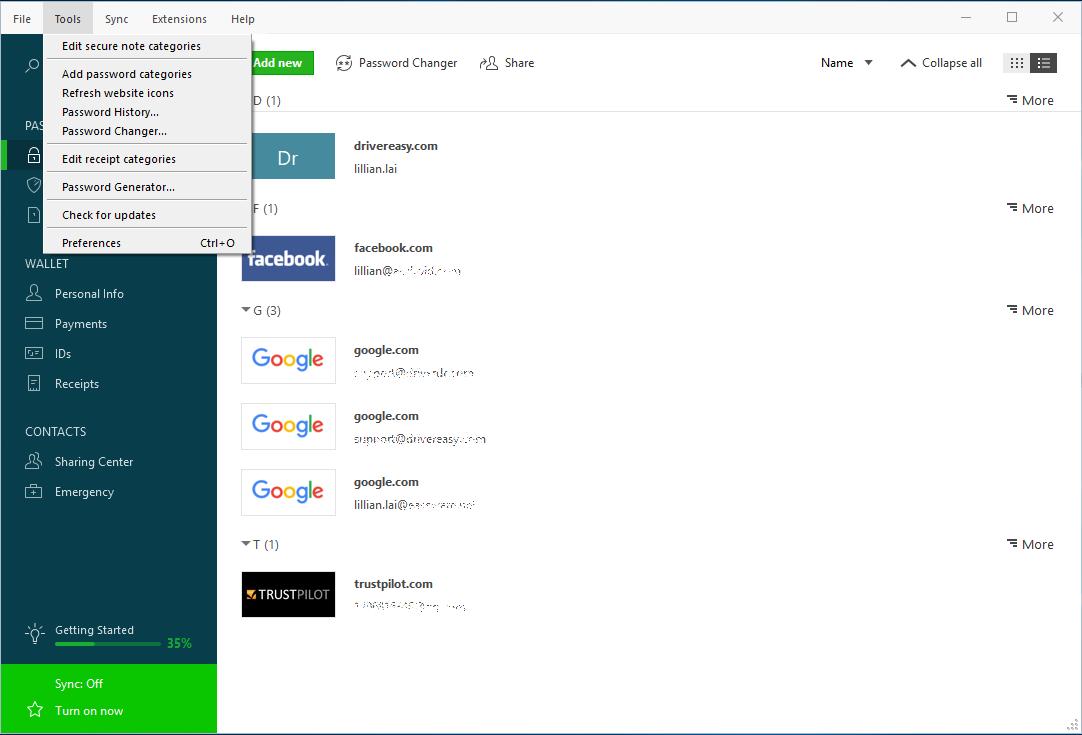
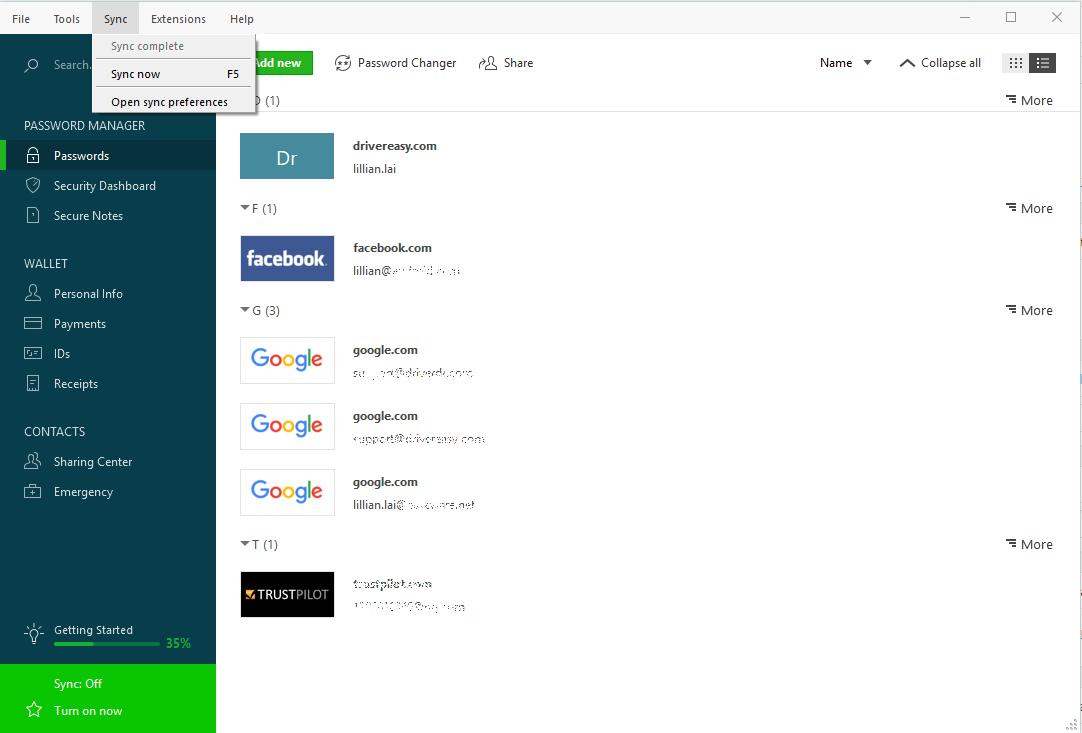
3) You can now store your passwords, change your passwords, and automatically generate strong passwords (you can do this and more with the FREE version).
Way 1: Enter the last correct password
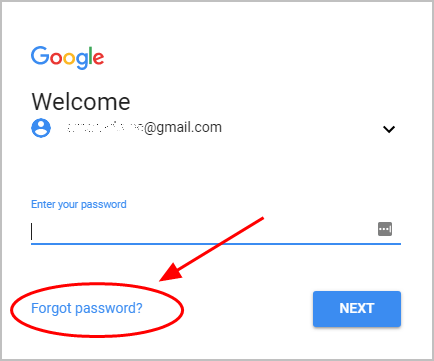
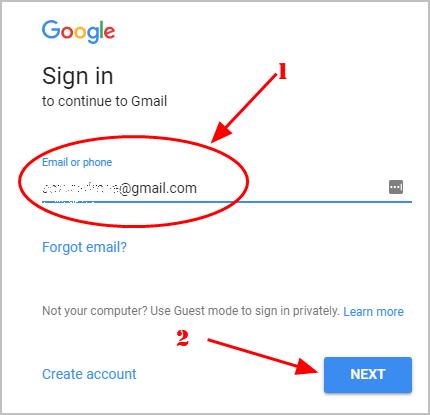
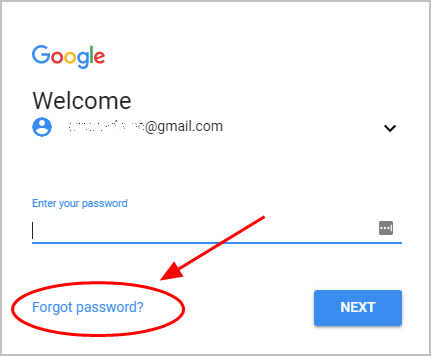
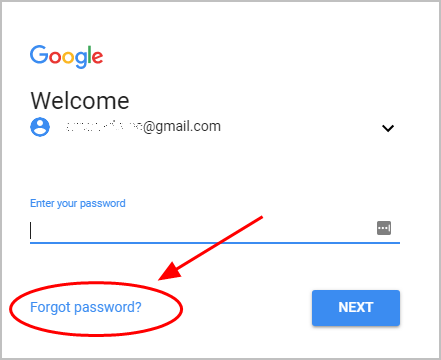
Many of you may forget the new password that is recently reset, or you haven’t logged in your Gmail account for a rather long time, but you can still try the last correct password for your Gmail account. To do so, follow these steps:1) Go to https://mail.google.com/ in your browser, and enter your Google email address with which you’ve forgotten the password.
Or you can directly go to Gmail account recovery center, then enter your Gmail address and click NEXT.
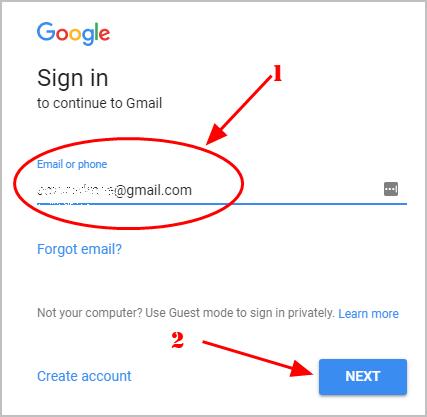
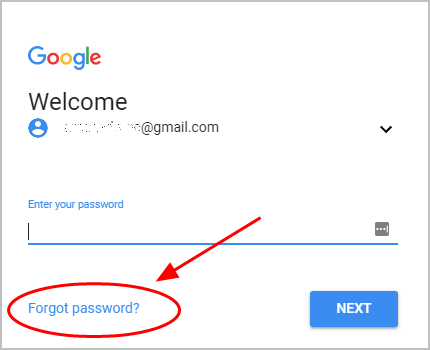
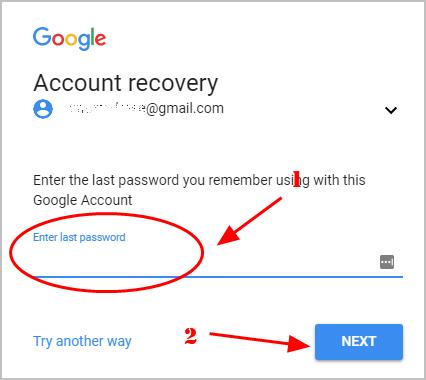
This’s a rather easy way to do. If it’s not an option for you, Try other ways.
Way 2: Get a verification code by your phone number
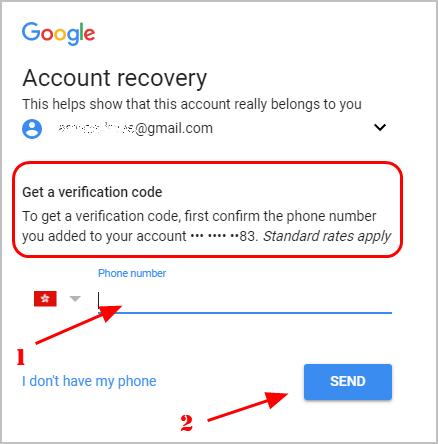
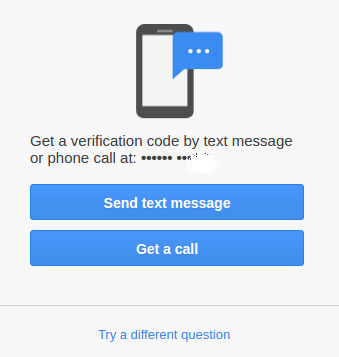
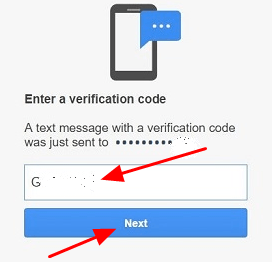
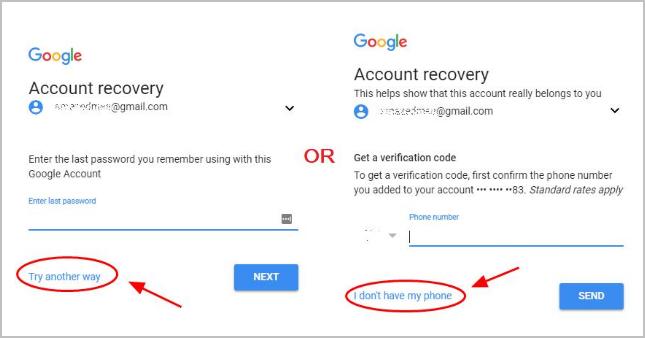
If you’ve enabled the 2-step authentication with a phone number, you can recover your Gmail password by getting a verification code sent by Google to verify that it’s your account.Note: You should have your phone handy, or have the access to the phone number to receive the verification code. If you lost that phone, firstly you should go to the carrier’s and have a new SIM card for that phone number.
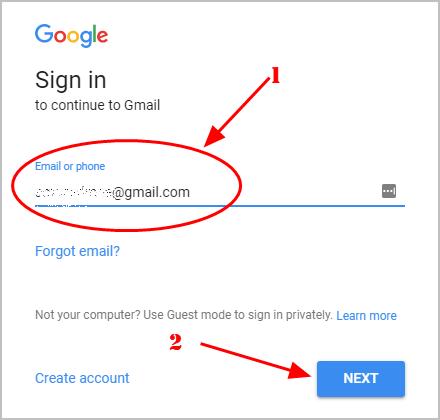
1) Go to https://mail.google.com/ in your browser, and enter your Google email address that you want to recover.Or you can directly go to Gmail account recovery center, then enter your Gmail address and click NEXT.
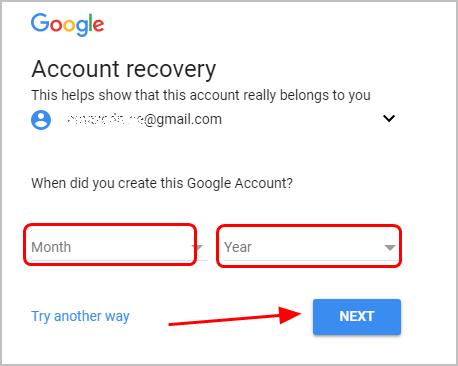
Way 3: Enter the time when you created your Gmail account
If the ways above don’t work for you, don’t be upset. If you know the time when you created your Gmail account, you can try this way:1) Go to https://mail.google.com/ in your browser, and enter your Google email address that you want to recover.
Or you can directly go to Gmail account recovery center, then enter your Gmail address and click NEXT.
Way 4: Get a verification code by your recovery email
1) Go to https://mail.google.com/ in your browser, and enter your Google email address that you want to recover.Or you can directly go to Gmail account recovery center, then enter your Gmail address and click NEXT.
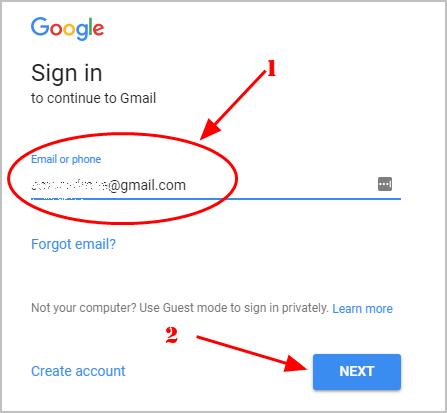
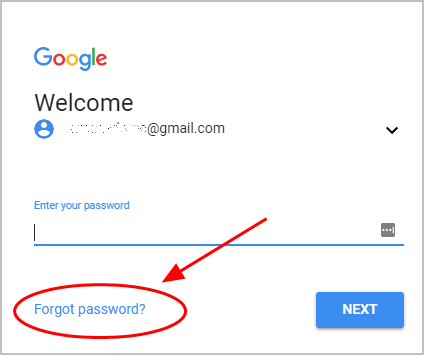
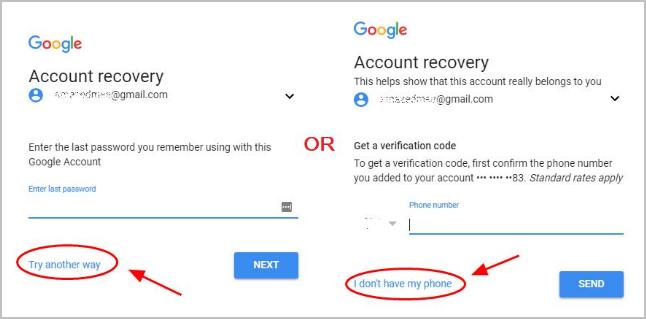
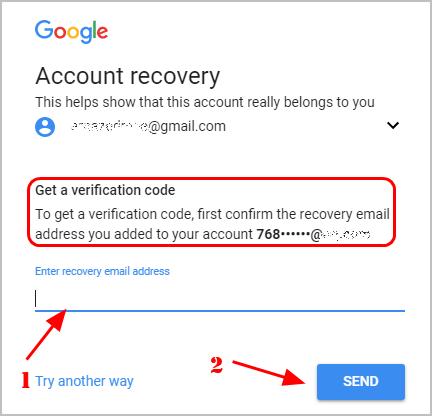
6) Follow the on-screen instructions to finish the verification steps and reset your Gmail password.
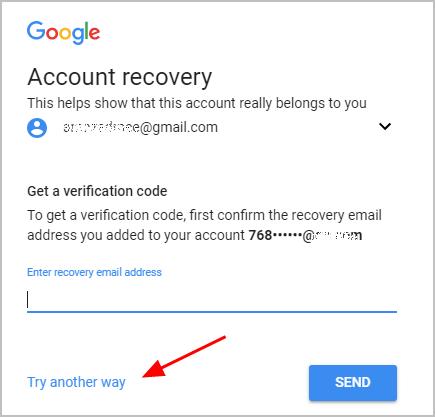
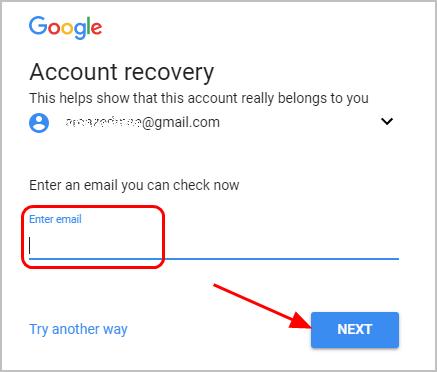
If you no longer have the access to that recovery email address, you can try the current email address to do this:
1) Still on the same page: To get verification code by recovery email address, click Try another way.
Way 5: Answer the security question
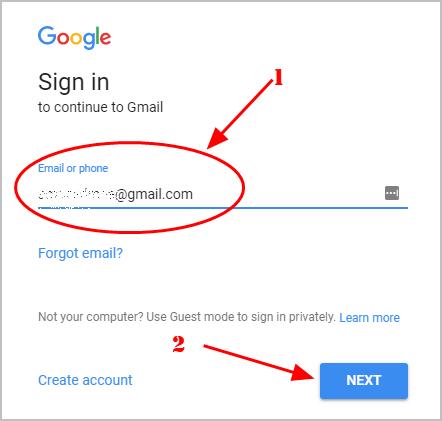
Another way to reset the password is to answer security question added to your account. To do so, follow the steps below:1) Go to https://mail.google.com/ in your browser, and enter your Google email address that you want to recover.
Or you can directly go to Gmail account recovery center, then enter your Gmail address and click NEXT.
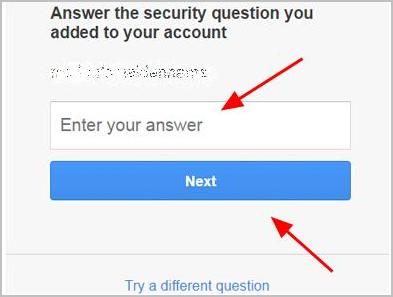
Sometimes you may be redirected to way 4 where you need to enter a recovery email address. This is somehow upset. But imagine this: if someone knows the answer to your security question, then he can access to your Gmail account. This is horrible, isn’t it? So don’t blame Google. Google’s been strict with security and privacy, so you’ll need to verify your ownership to this Gmail account to log in.
These’re the solutions you can try to recover your Gmail password if you’ve forgot your password of Gmail. Feel free to comment below if you have any questions, and we’ll see what more we can do to further help.
from Fruitty Blog https://ift.tt/3eX3a2V
via IFTTT

No comments:
Post a Comment