News, Events, Entertainment,Lifestyle,Fashion, and so much more
Sunday, 21 June 2020
How to create a you tube channel
How to Create a YouTube Channel in 3 Simple Steps
YouTube, the Google-owned video network, boasts over a billion users— almost one-third of all people on the Internet — and every day people watch hundreds of millions of hours on YouTube and generate billions of views. On mobile alone, YouTube reaches more 18-34 and 18-49 year-olds than any cable network in the U.S.
What’s amazing, though, is that only 9% of small businesses in the U.S. are actively using YouTube, and my hunch is that figure would be pretty accurate worldwide, too. So why aren’t businesses investing in YouTube as part of our social media strategy?
In short, because video is harder to produce than a blog post or an image.
Or at least that’s the perception many of us have.
In reality, though, video is becoming much easier and cheaper to create. This means there’s a huge opportunity for your business on YouTube.
If you’ve been debating getting started on YouTube or have maybe experimented a little and not yet found your feet, this post is for you. Throughout this post we’ll dive into:
The basics of getting your account set up
How to create a YouTube channel
How to create the perfect channel art
Top tips for optimizing your channel.
Ready to start? Let’s go.
How to create a YouTube channel
Creating a YouTube channel using your Google account
If you have a Google account, you can watch, share and comment on YouTube content. However, Google accounts don’t automatically create YouTube channels. Getting a new channel set up is a simple and quick process, though.
1. Go to YouTube and sign in
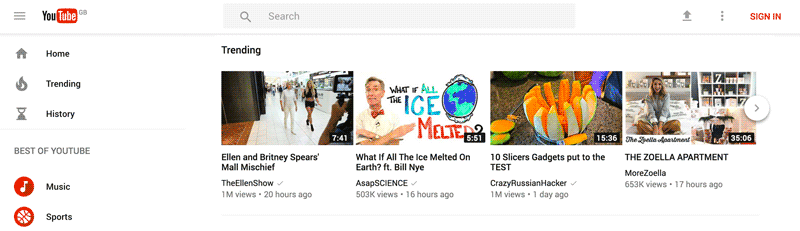
Head over to YouTube.com and click ‘sign in’ in the top right corner of the page:
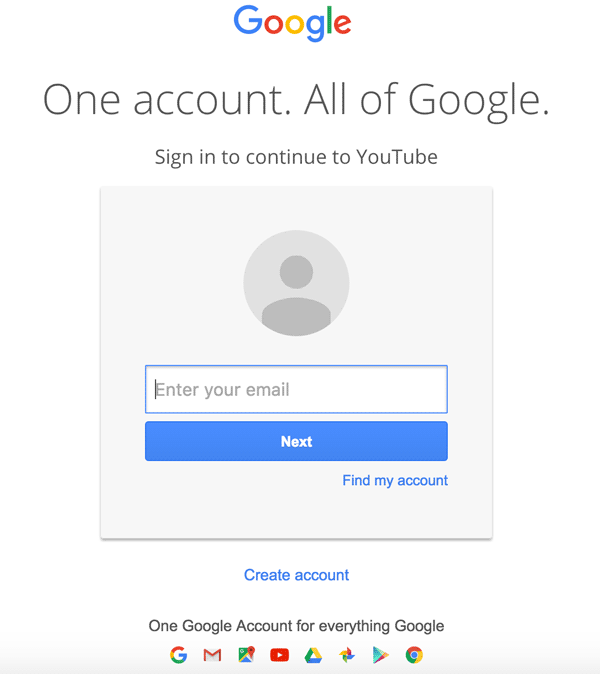
Then log in using the Google Account you’d like your channel to be associated with:
2. Head over to your YouTube settings
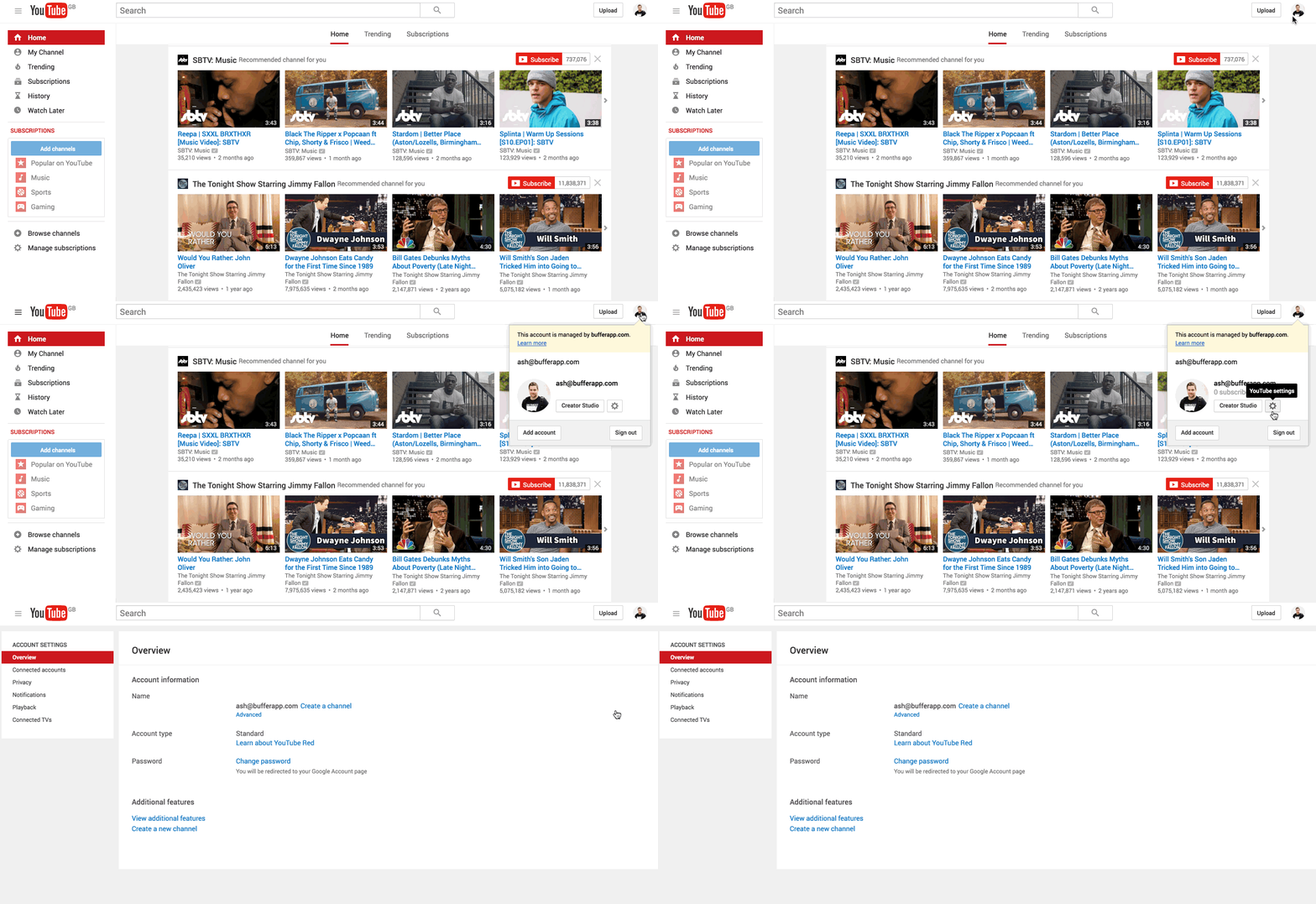
In the top right corner of the screen, click on your profile icon and then the ‘Settings’ cog icon.
3. Create your channel
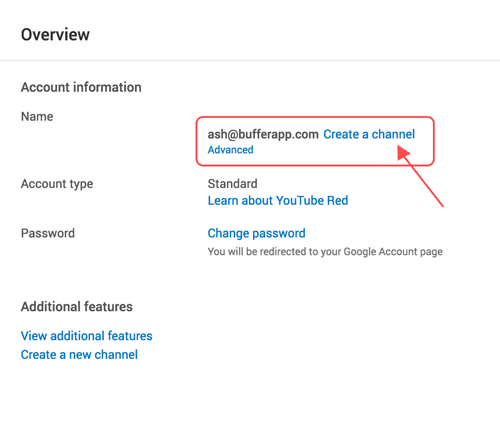
Under your settings, you’ll see the option to “Create a channel,” click on this link:
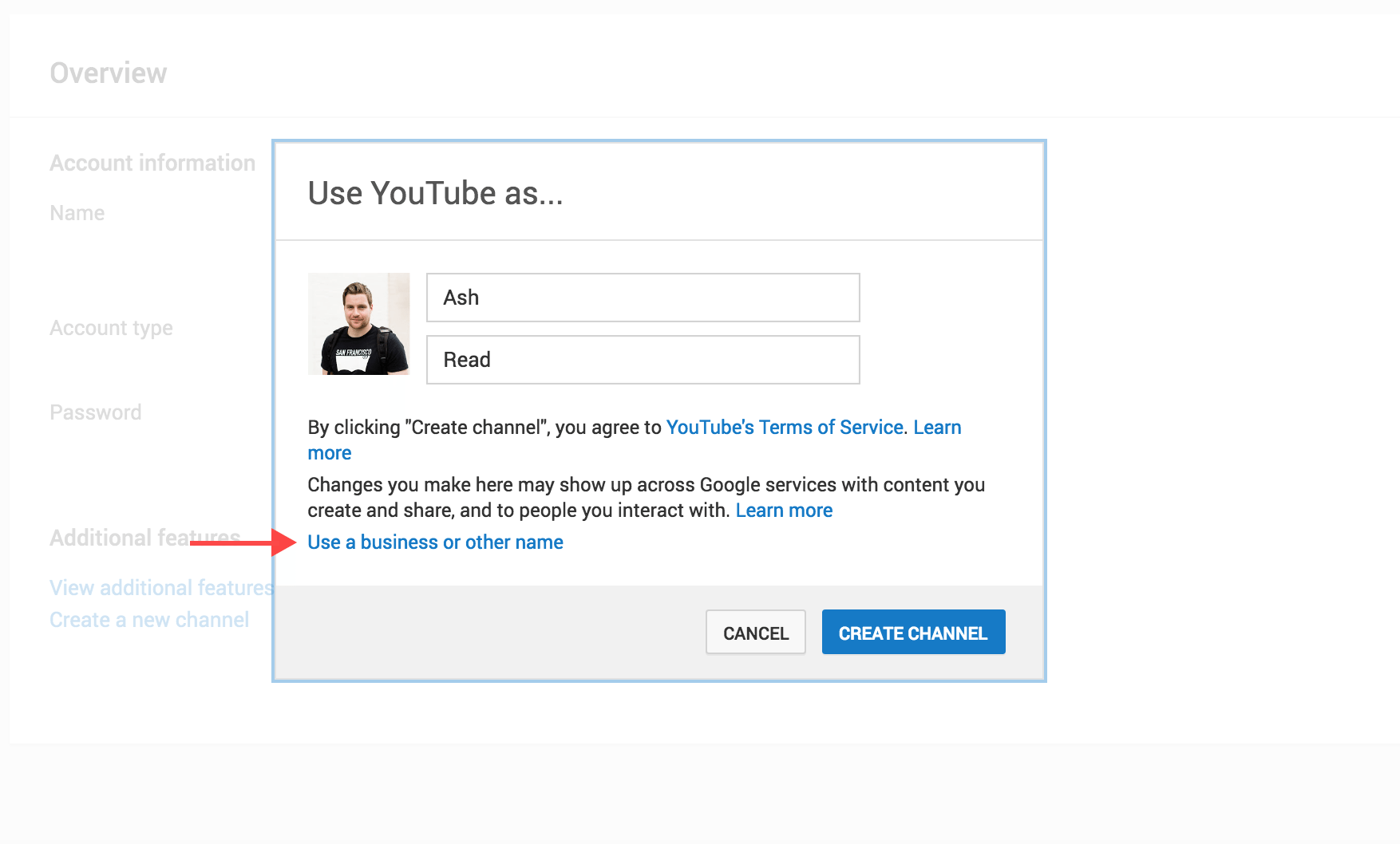
Next, you’ll have the option to create a personal channel or a create a channel using a business or other name. For this example, we’ll choose the business option:
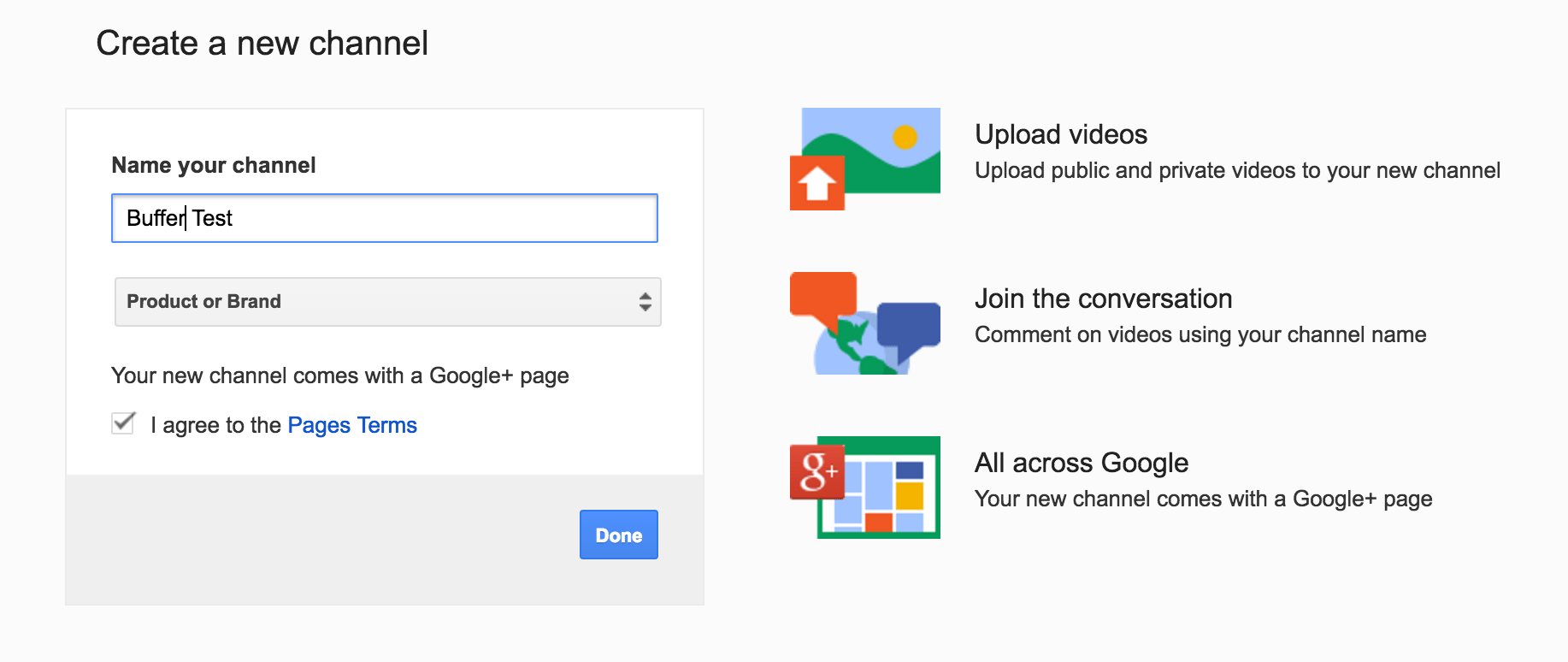
Now, it’s time to name your channel and select a category. The channel options available include:
Product or Brand
Company Institution or Organization
Arts, Entertainment or Sports
Other
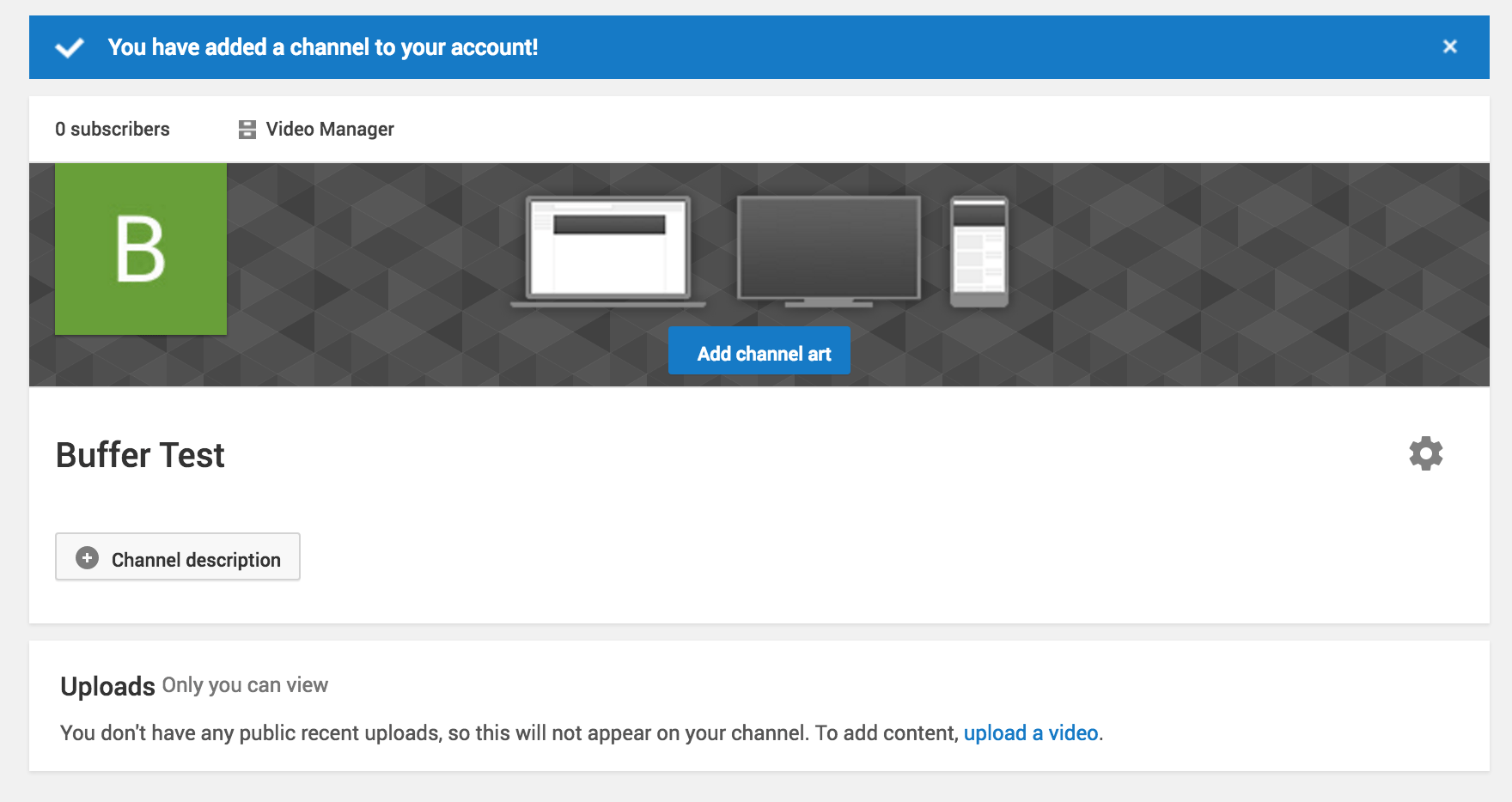
Note: a new Google+ page will also be created for your brand. Congratulations! You’ve just created a new YouTube channel ?
from Fruitty Blog https://ift.tt/315mh6G
via IFTTT


No comments:
Post a Comment