News, Events, Entertainment,Lifestyle,Fashion, and so much more
Saturday, 20 June 2020
How to take a screenshot in android
You have lots of different ways to take screenshots on your Android device. Some are manufacturer-specific, some are operating system-wide, and some rely on dedicated apps from the Google Play Store.
Advertisement
It can be difficult to make sense of the options and determine which is the best approach for your specific device. Let’s look at the most common methods for taking Android screenshots and introduce you to two of the best third-party apps.
1. Use the Android Screenshot Shortcut
These days, taking screenshots using nothing more than your device is a breeze.
Press and hold the Power + Volume Down buttons at the same time, and you’ll see a brief onscreen animation followed by a confirmation in the notification bar that the action was successful.
There’s a knack to getting the timing right. Press the power button too soon and you’ll lock your device’s screen. But press the volume button too soon and you’ll end up changing the volume.
Not all phones use the standard Android method.
For example, Samsung devices require you to press the Power + Home buttons to take a screenshot instead. Thereafter, the process is the same. You’ll be given an on-screen confirmation and the image becomes viewable in your gallery app.
Some phones use the standard method but also have additional options. For example, on some Sony devices, you can press the Power button to access the options menu. From there, you can take screenshots as well as recording your Android device’s screen.
Early versions of Android didn’t allow apps to take screenshots without rooting. It was a security feature designed to prevent malicious downloads from spying on you and stealing private information.
However, rooting your Android device opens you up to a world of possibilities. There are lots of apps in the Play Store that have a simple Take Screenshot button, specifically for use on old rooted versions of Android. We rounded some of them up in the best Android apps for taking better screenshots.
Let’s take a look at a couple of the best third-party screenshot apps. Their basic functionality is the same as the stock method, but they offer some cool additional features that aren’t available natively.
Screenshot Easy
Advertisement
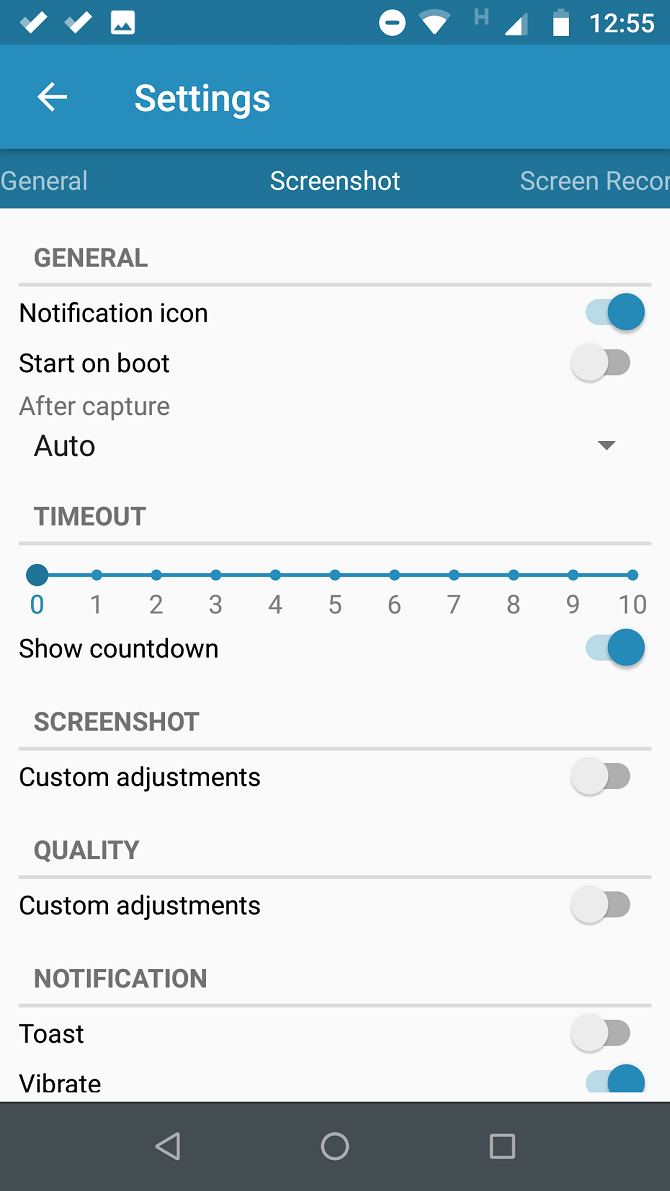
The first screenshot app to check out is Screenshot Easy. This app has some great usability functions. For example, it lets you take shots using a screen overlay button, a button in the notification bar, by shaking your device, or by using a widget.
There are also some great post-shot options. You can crop your screenshots, convert them to a ZIP file, edit the colors, and include time and date stamps. You can save images in either PNG or JPG format.
Lastly, Screenshot Easy has screen recording capabilities, including support for scrolling screenshots. Download:Screenshot Easy (Free)
Advertisement
Super Screenshot
Super Screenshot is free to use and doesn’t include ads, making it a great choice for users who want a clean and easy-to-use screenshot app.
Perhaps its best feature is its ability to crop your screenshots before it commits them to memory. It also lets you resize your snaps, scribble on them, add text notes, and set various filters. To achieve the same results using the stock Android method, you’d need to download a photo editing app.
You can save photos directly to your phone’s SD card to save space, where appropriate. Download: Super Screenshot (Free)
You might also be interested in apps to take scrolling screenshots and OCR-based screenshot apps that help you find your screenshots quickly.
5. On Pre-Android 4.0 Devices
Before the introduction of Android 4.0 Ice Cream Sandwich in October 2011, there was no way to take a screenshot using the operating system.
Thankfully, not many people are using ancient versions of Android on their phones. But if you’re forced to use Gingerbread or Honeycomb—perhaps because your main device is out of action and you’re using an old spare—you need to know how to take screenshots too.
The best method for non-rooted devices is to use the Android SDK. Yes, it’s cumbersome to set up, but it’s the most dependable approach.
You can download the SDK from the official Android website. Installing and setting up the SDK app is beyond the scope of this article, so check out the No Root Screenshot It app if you want a simpler user interface.
Which Android Screenshot Method Do You Use?
To summarize, as long as you’re using Android 4.0 or later (and you probably are), your phone can take screenshots natively. If you’re looking for additional options, you should turn to a third-party app, and if you’re running an earlier version of Android, you’ll need to either root your device or use a desktop application.
If you’d like to learn more about Android, check out stock Android apps you should replace and these informative Android websites.




No comments:
Post a Comment